
Last reviewed 26 November 2026. First published 13 August 2026.
The question that brings most readers to this page is a simple one. Can I automate SFTP without writing scripts?
The short answer is yes, in three different ways, and each one has a price. The longer answer is that the scripts themselves are rarely the problem. The problem is where they live. A shell script on a scheduler, sitting outside the file transfer server with its own stored password, is a different thing from a few lines that run inside the server when a file arrives.
This article covers both. First the three routes to SFTP automation (or automated file transfer, as many people search for it) without custom scripts to maintain, then what actually changes when the automation moves inside the server.
One note on what changed. The first version of this article made its case with phrases like "security research shows" and "industry analysis states" without naming the research. We have replaced those with sources you can open, and removed the claims we could not trace.
Key points
You can automate SFTP without writing scripts yourself. Use built-in settings and webhooks, use a few lines of code that run inside the server, or have someone else write the code.
The risk in custom scripts comes from where they run. Outside the server, on a scheduler, with their own stored passwords.
Automation inside the file transfer server reacts to events. It takes its passwords from the server's secrets store and writes to the server's log. It needs no scheduler.
No approach removes the need for someone to own the logic. Pick the one whose logic you can read, review and hand over.
How is SFTP automation usually done?
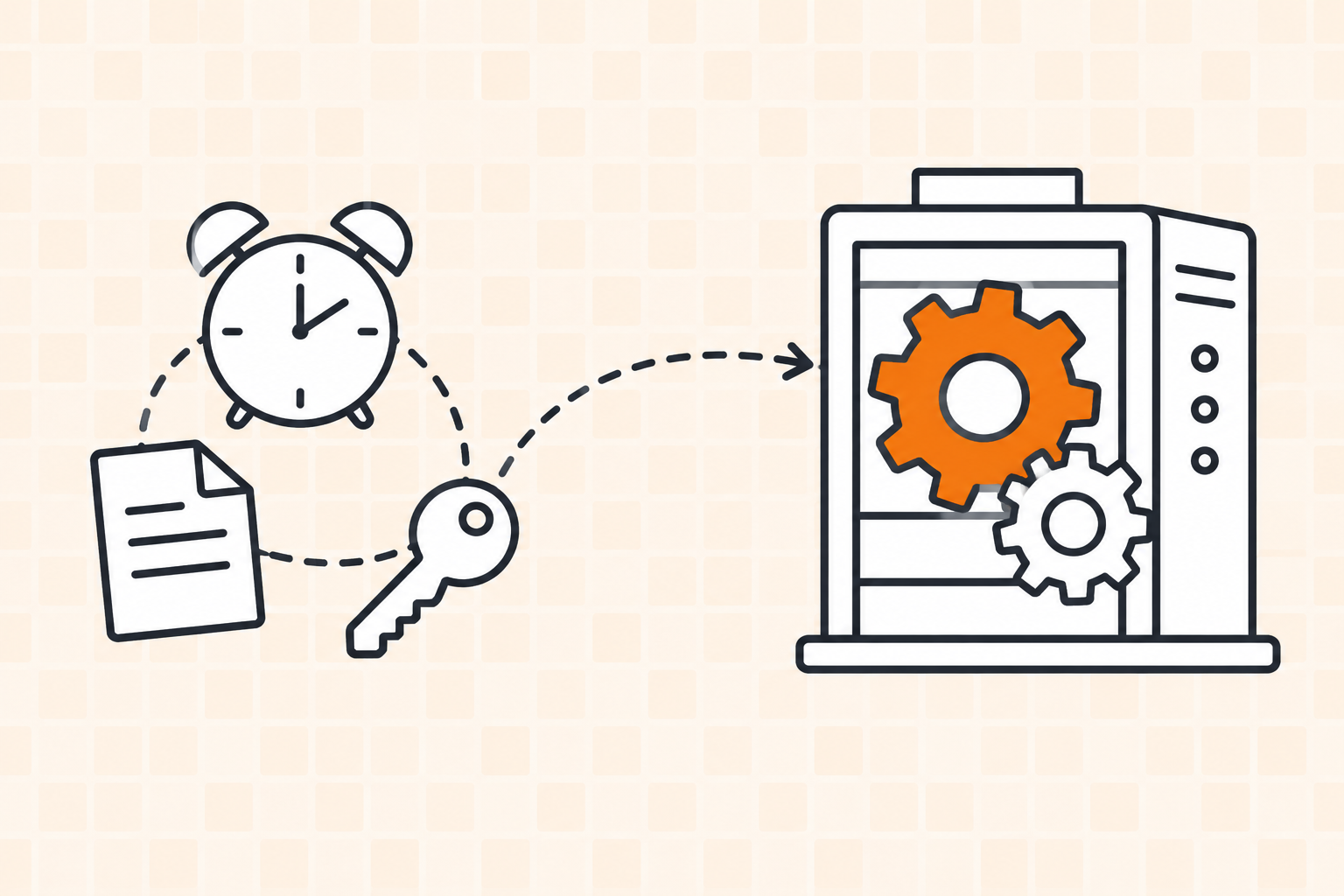
The default recipe has three parts. Someone writes a shell or PowerShell script. A scheduler (cron on Linux, Task Scheduler on Windows) runs it at fixed times. The script calls a command-line SFTP client to connect, move the files, and do whatever has to happen before or after.
It works, and a great many organizations run on exactly this. But notice where everything sits. The automation for the file transfer system lives entirely outside that system, with its own credentials, its own permissions and its own ways of failing.
Why are custom SFTP scripts a risk?
There are three reasons, and none of them is about SFTP itself.
The scheduler is a known attack path. MITRE's ATT&CK catalog of real-world attacker behavior lists Scheduled Task/Job as a technique used for execution, persistence and privilege escalation. A job that runs unattended under a privileged account is exactly what an intruder wants to find, and to edit.
The password ends up in the script. A script that logs in to an SFTP server needs the login details somewhere, and the easiest place is the script itself. This has a name, Use of Hard-coded Credentials, and it appeared on the list of the 25 most dangerous software weaknesses every year from 2019 to 2024. It is also getting worse. GitGuardian, a company that sells secret detection, counted about 28.6 million new hard-coded secrets in public GitHub code in 2025, up 34 percent in a year, and found private repositories about six times more likely to contain one.
The knowledge leaves with the author. A script written three years ago by someone who has since moved on is still running tonight. Nobody is sure what it does until it stops. It is a quiet way for SFTP automation to fail, and no security tool will warn you about it.
There is also a plain practical limit. A scheduler runs on a timer, not when something happens. The file that arrives one minute after the job ran waits for the next run.
Can you automate SFTP without writing scripts?
Yes. There are three routes, and they differ in how much code is involved and who writes it.
Use no code at all. Start by checking whether the job still needs automating. Features keep moving out of scripts and into settings. Antivirus scanning is a recent example. Until this month, scanning uploads in Syncplify Server! meant a staging folder and a script. Since version 8.12.0, released on 17 November 2026, it is a setting in the admin interface, and it works with any antivirus engine that speaks the ICAP protocol.
Webhooks are the second no-code option. Since version 8.9.0 the server can send a signed notification to a web address you choose whenever selected events happen, and whatever is listening there does the rest. You set it up in the admin console and write nothing on the server.
Some other managed file transfer products go further and offer a visual workflow builder, where you pick a trigger and an action from forms. If you look at one, ask two things. Can a workflow be exported as text and compared with last month's version? And what happens with the case the forms do not cover? Often the answer to the second question is a step called "run a script".
Use a little code, inside the server. Here you write a few lines, and those lines run inside the file transfer server. There is no scheduler, no separate login and no second log. This is server-side automation, and the next section looks at it closely.
Have someone else write the code. The logic can be written by the vendor's own engineers or drafted by an AI assistant and then reviewed. You get the result without doing the writing, and you still own something you can read.
| No code | A little code, inside the server | Code someone else writes | |
|---|---|---|---|
| Who writes the logic | Nobody. You switch on a setting, add a webhook or fill in a form. | You, in a few lines | The vendor's engineers, or an AI assistant you review |
| Where it lives | In the server's settings | Inside the file transfer server | Inside the server, as code you own |
| Can you compare versions | Depends on the product. Ask how settings are exported. | Yes. It is plain text. | Yes. It is plain text. |
| The unusual case | Needs one of the other two routes | Handled in the same script | Scoped and handled up front |
| Fits best | Standard jobs such as virus scanning and notifications | Teams with someone comfortable reading code | Teams with no time to write it themselves |
Where does Syncplify stand? We do not make a drag-and-drop workflow builder. What we have done this autumn is move common jobs out of scripts and into settings, with webhooks in version 8.9.0 and antivirus scanning in 8.12.0. For everything else we use code on purpose, because automation you can read, compare and roll back ages better than automation stored in forms. If your transfers are simple and nobody on your team will ever want to read code, a product with a visual builder may suit you better, and that is a fair choice.
What changes when automation runs inside the SFTP server?
Server-side automation means the logic runs in the same process that handles the connections, the users and the files. Five things change.
Try it
Where does the automation live?
Switch between the two setups and count the separate parts.
Three parts to secure and two logs to read. The timer does not know when the file arrived.
One part. The upload starts the script, the password comes from the secrets store, and everything is written to the server's log.
Dark boxes sit outside the file transfer server. Orange outline means inside it.
Events replace timers. The script runs because something happened, not because a clock ticked. In Syncplify Server!, the current manual lists 67 event handlers, covering logins, uploads, downloads, renames, deletions and more. Some fire before the action, so a script can refuse an upload instead of cleaning up after it.
Passwords come out of the scripts. The server keeps a secrets store, and a script asks for a secret by name when it runs. The file that contains the logic no longer contains the password.
Common operations are built in. The traditional reason for calling an outside tool was that the scripting language could not do the job. That reason keeps shrinking. In April 2026 our scripting language, SyncJS, gained 21 functions, including CSV and XML parsing, gzip, PGP signing, and the HMAC signatures that services such as GitHub use to authenticate webhooks. Signing a payload now takes three lines and no external program.
var key     = GetSecret("webhook-secret");
var sig     = HmacSign("sha256", key, payload);
var trusted = HmacVerify("sha256", key, payload, incomingSig);
SyncJS, from the release notes. The secret is fetched by name, so the script holds no password, and the signing happens inside the server.
Outside tools become a choice, not a default. Nothing stops a server-side script from calling an external program when there is a real reason. In March 2026 we described a customer's zero-trust file pipeline built this way. Every upload landed in a staging area, a script handed it to an antivirus scanner, and only clean files were copied on to internal storage. The scanner was external, while the decision, the logging and the file movement stayed in one place. That particular job no longer needs a script, as the previous section explains. The pattern still holds for any specialized tool the server does not include.
The same script runs on Windows and Linux. SyncJS is JavaScript with file transfer functions added, and the engine is part of the product, not of the operating system. A shell script and a PowerShell script that do the same job are two programs to maintain. A SyncJS script is one, and apart from a few product-specific calls it also runs in R2FS! and AFT!.
The honest limit is that this is still code. Someone has to write it and someone has to own it. In Syncplify Server! it is part of the Professional and Ultimate editions.
What if you do not want to write code at all?
Then do not write it. There are two ways to get server-side automation without being the author.
Have the vendor write it. Our Professional Services team writes SyncJS for customers. It starts with a short requirements call. The scripts are then written, tested and handed over, and you own the code. Work with a clear scope gets a fixed quote before it starts.
Have an AI assistant draft it. The free SyncJS extension for Visual Studio Code works with an MCP server that gives AI coding assistants SyncJS-aware tools, including syntax checking and a sandbox to run the script in. The assistant writes, the tools check, and a person reviews before anything goes live. One caution from the same GitGuardian report applies here. Code written with AI assistance leaked secrets at about twice the usual rate, which is one more reason to keep passwords in the secrets store and out of the script.
Either way you end up with a small piece of readable code that the next person can open and understand, which is the thing a forgotten cron job never gives you.
Can you automate the server itself through a REST API?
Everything so far is about what happens to files. The other half of automation is managing the server from your own tools. That means creating users, changing settings and watching what happens, without anyone clicking through an admin screen.
Three releases this autumn were built for that. Version 8.8.0 added automation tokens, which are credentials for unattended access to the REST API. They are read-only unless you say otherwise, they expire, and every change they make is recorded against the token and its owner. Version 8.9.0 added webhooks and a live event stream, so a tool can be told what happened and does not have to keep asking. Version 8.10.0 added an optional adapter that lets an AI agent administer the server through the same API. Every change the agent proposes is shown as a preview first and has to be confirmed, and the adapter cannot list folders or read files.
All of it stays switched off until a SuperAdmin turns it on, and it is part of the Professional and Ultimate editions.
When is server-side automation the wrong tool?
When the server is not yours. If you are collecting files from a partner's SFTP server, you are the client and there is nothing to run on their side. That calls for client-side automation. Syncplify AFT! is automated file transfer software built for this job. It runs jobs on a schedule, when a file appears in a watched folder or on request, and it connects to SFTP and FTPS servers as well as Amazon S3, Azure Blob and Google Cloud Storage.
When the work is really data processing. Validating a file and routing it belongs in the file transfer server. Joining it with three databases and loading a warehouse belongs in a data pipeline tool.
When your transfers are few and identical. One nightly file to one destination does not need an event-driven design. It needs to be written down, with its password stored properly, and with a named owner.
How do you move away from custom scripts?
Start by finding out what you have. Most teams are surprised by the count.
Worth checking today
Three counts that show where you stand.
Count the scheduled jobs that touch your file transfer server. Include cron, Task Scheduler and anything a colleague set up years ago.
Search those scripts for passwords and private keys. Every one you find is a credential to change and to move somewhere safer.
Write a name next to each script. It should be someone who can explain what it does. The blank lines are your priority list.
Then move one workflow at a time, beginning with the script that worries you most. Rewrite it where it will run from now on, take the password out, run old and new side by side for a week, and switch the old one off. Write one paragraph that says what it does and who owns it.
Whichever route you take, judge it by the same test. Could someone who has never seen this automation open it, understand it and change it safely? A form can pass that test. So can ten lines of code. A script nobody remembers, on a scheduler nobody checks, cannot.
In Syncplify Server!, scripting and event handling come with the Professional and Ultimate editions, and the free 15-day trial includes them. The scripting manual lists every event and function.
Questions we hear often
-
Yes. Start with what needs no code at all, which is built-in settings (antivirus scanning, for example) and webhooks. Beyond that you can use the scripting engine built into your SFTP server (a few lines that run inside the server, with no scheduler), or have the scripts written for you by the vendor or an AI assistant.
-
Move the logic out of external shell scripts and into the file transfer server. Server-side automation runs when an event happens, such as an upload finishing. It takes passwords from the server's secrets store and writes to the server's log, so there is no scheduler, no stored password and no separate script folder to maintain.
-
Automated file transfer means files move between systems, and the steps around the move (checking, renaming, encrypting, forwarding, notifying) happen, without a person starting them. A schedule or an event such as a file arriving sets it off. SFTP automation is the same idea applied to SFTP servers.
-
It is automation that runs inside the SFTP server itself, in response to events on the server. The alternative is client-side automation, where a script or tool outside the server connects to it like any other user.
-
The scripts keep running until something changes, and then nobody knows how to fix them. Before that day, list every script and scheduled task, record what each one does and which password it uses, and move the important ones somewhere they can be read and reviewed.
-
For logic that reacts to files arriving on your own server, use event-driven automation inside the server. For collecting files from other people's servers, use a file transfer automation tool that has scheduling, logging and a secrets store built in.
-
The safer answer is not to. A password written into a script can be read by anyone who can read the file, and it tends to be copied into backups and code repositories. Use an SSH key for the connection where you can, and keep any password in a secrets store that the script asks by name. Automation that runs inside the file transfer server needs no login at all.
-
On your own server, attach a script to the upload or download event so that files are encrypted, decrypted or signed as they arrive or leave. For files you send to someone else's server, do the encryption in the job that sends them. In Syncplify products both use the same PGP functions.
-
Yes. Microsoft's SFTP-SSH connector lets Power Automate and Azure Logic Apps connect to an SFTP server as a client, with a password or a private key. It is client-side automation, so the flow checks the server at intervals, and the server has to support the connector's algorithms and key formats. Microsoft's page lists those requirements and the servers the connector does not support.
-
Yes, with review. AI coding assistants can draft the scripts, and some vendors supply tools that let the assistant check syntax and test the script in a sandbox. A person should still read the result, and passwords should stay in a secrets store.
-
Regulated firms need every automated transfer to be logged, every password kept out of scripts, and every change reviewed. That usually means automation that runs inside the file transfer server or a dedicated automation tool, with audit logs that can be shown to an examiner.
-
Yes, in three layers. Built-in settings cover jobs such as antivirus scanning. Webhooks, a REST API with automation tokens and a live event stream connect the server to your other tools. SyncJS scripting with event handlers covers everything else. Webhooks, the API automation features and scripting are part of the Professional and Ultimate editions. Syncplify AFT! is a separate product for scheduled and client-side transfers, and it uses the same scripting language.